In my last tutorial, I showed you how you can quickly and easily set up a navigation system for FactoryTalk Optix applications using a Navigation Panel (you can find that tutorial here.
But in most projects, you don’t want all users to be able to access every screen on the HMI. There are generally screens that are reserved for engineers and administrators.
In this tutorial, I will show you how you can use the Enabled and Visible properties of a tab in a Navigation Panel to hide and disable specific tabs in a Navigation Panel.
Let’s get started.
In FactoryTalk Optix, I have created a new project.
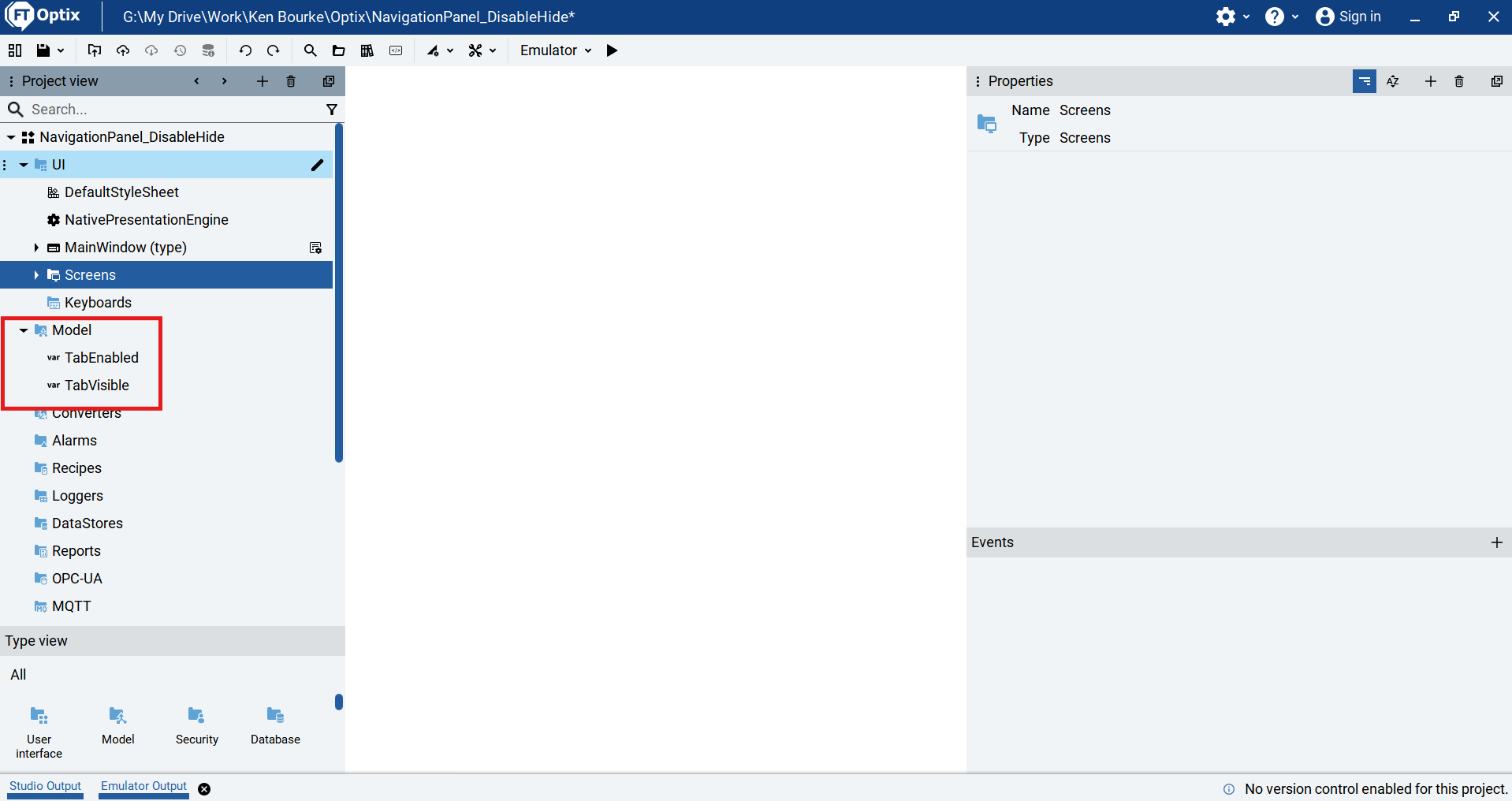
In this project, I have added two Boolean variables to the Model folder called TabEnabled and TabVisible.
I have also created 2 screens.
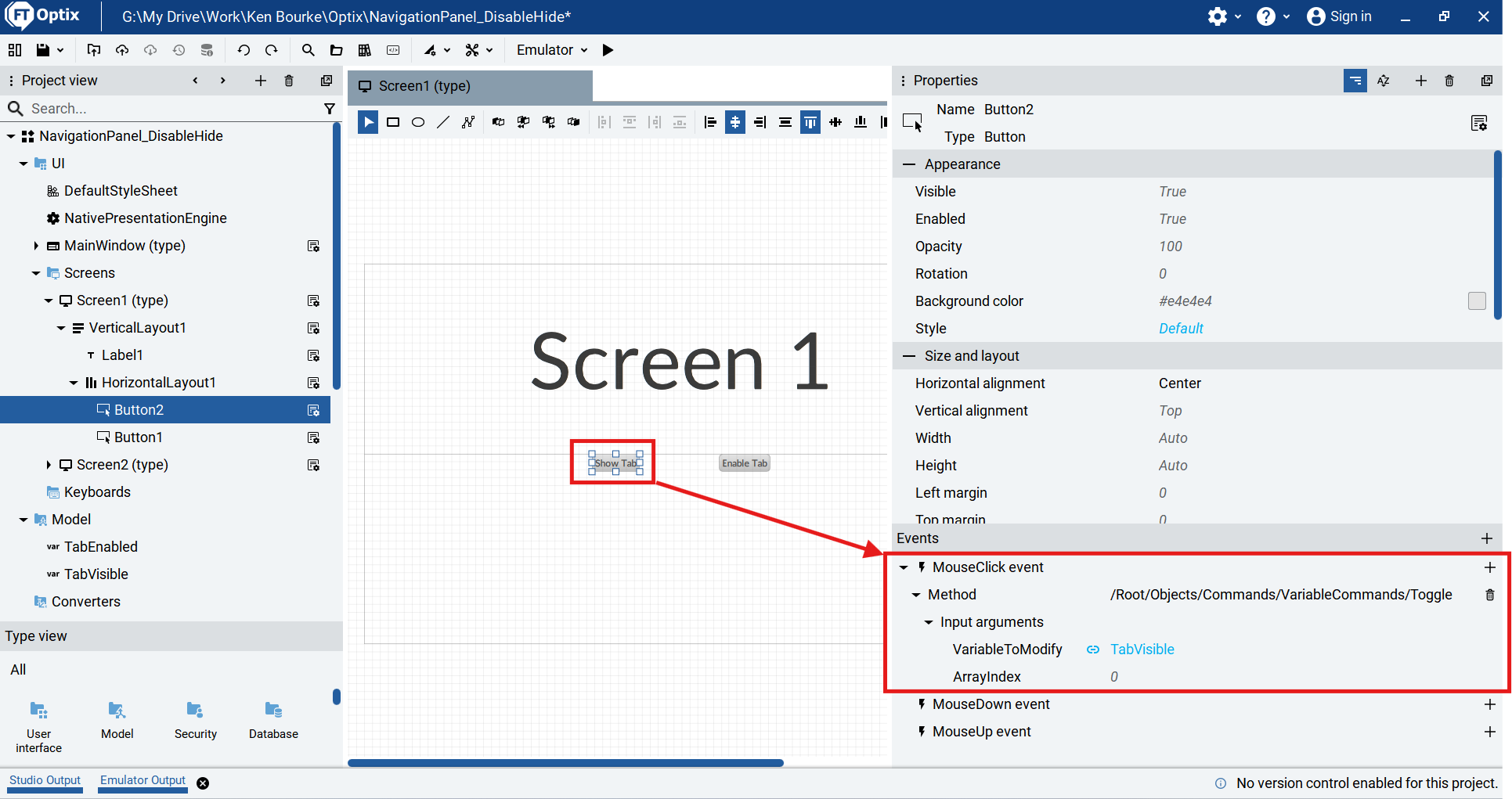
Screen 1 has two buttons that toggle the values of the TabEnabled and TabVisible variables. The variables are toggled using a MouseClick event that triggers the Toggle method.
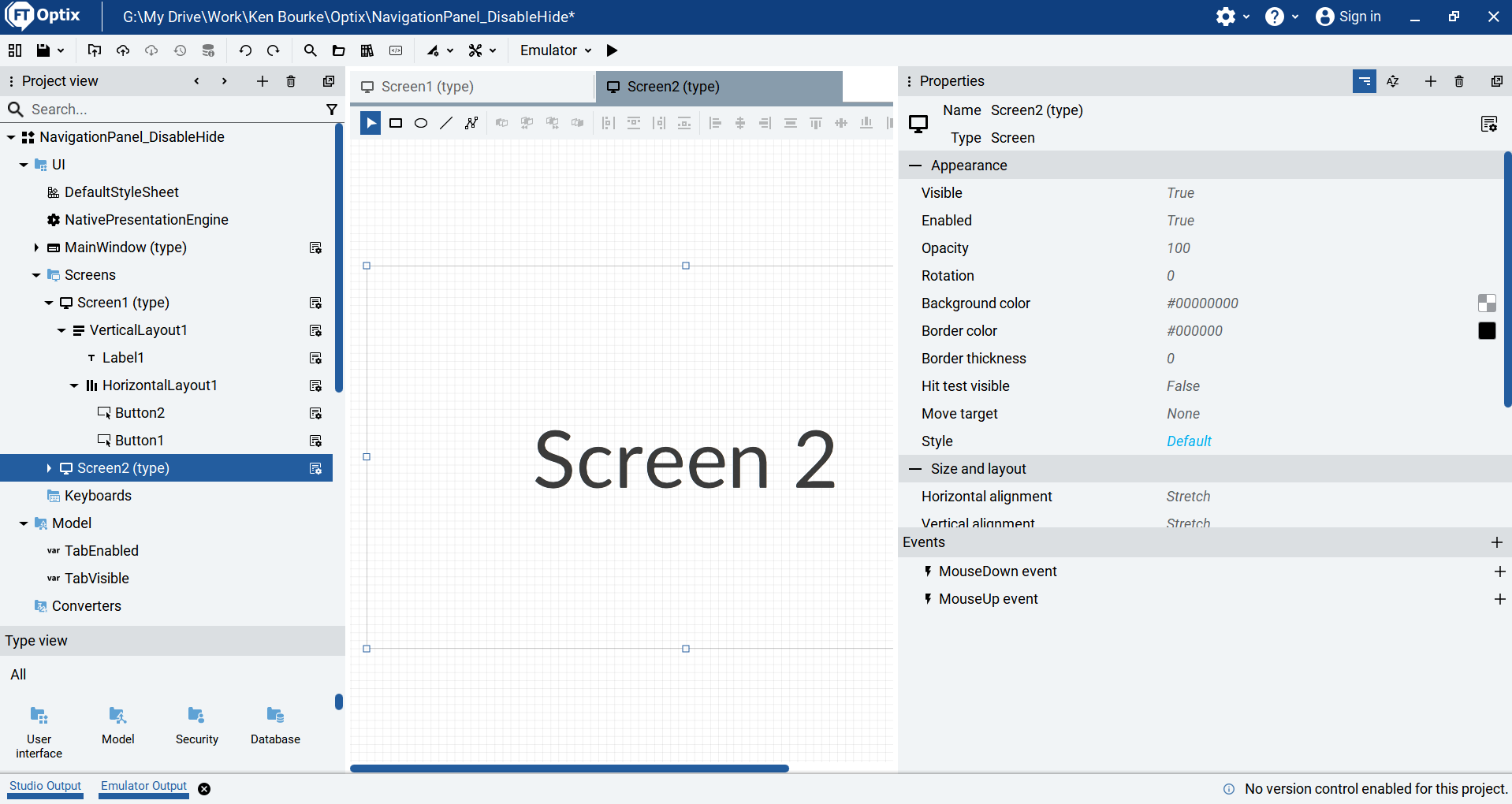
Screen 2 just has a label.
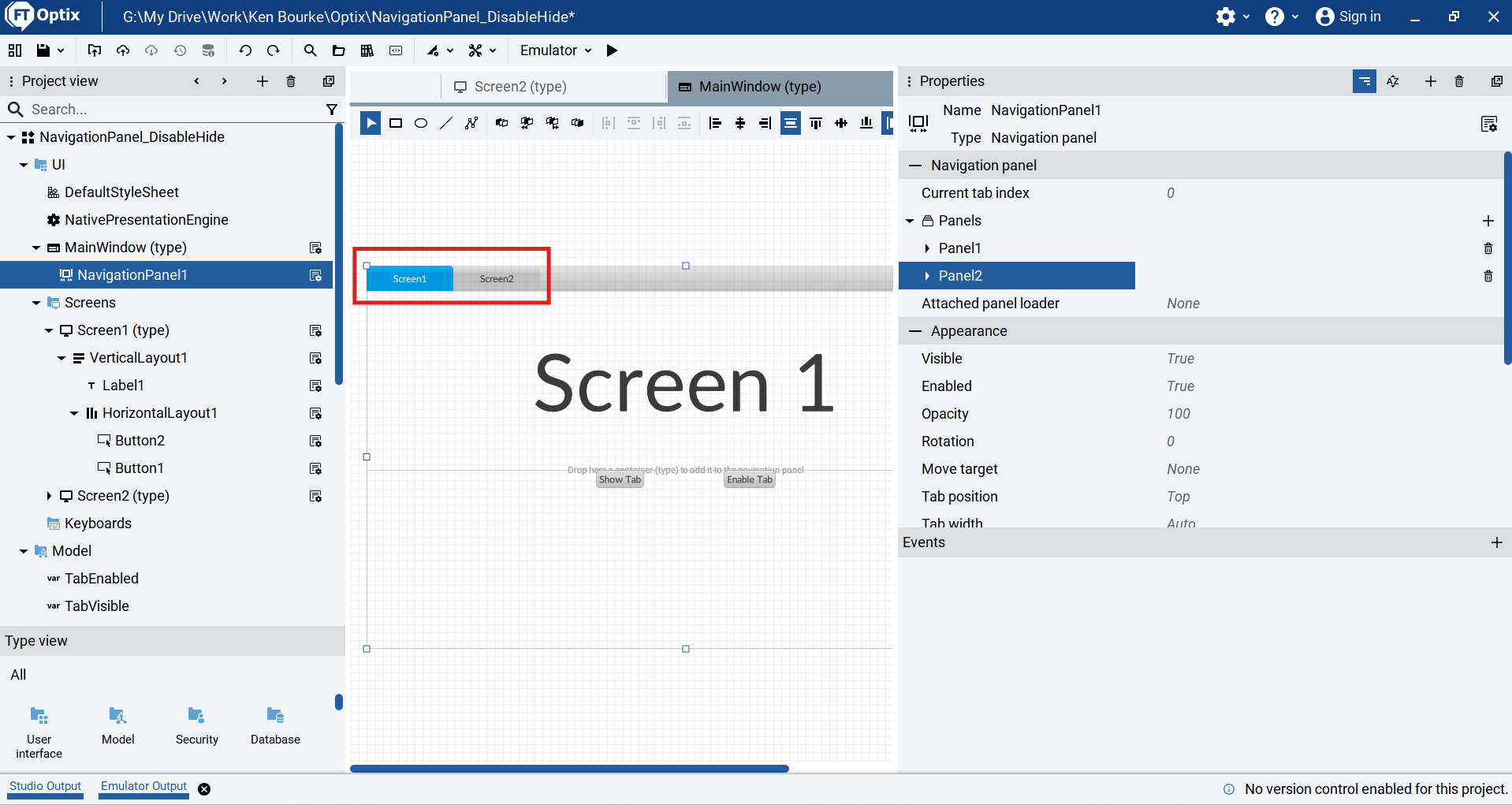
Finally, I have added a Navigation Panel to the MainWindow with tabs for Screen 1 and Screen 2.
Once the project is set up, I can disable and hide individual tabs in a Navigation Panel by using the Visible and Enabled properties of the panel.
To dynamically control these properties, I can link them to a variable using a dynamic link as shown here.
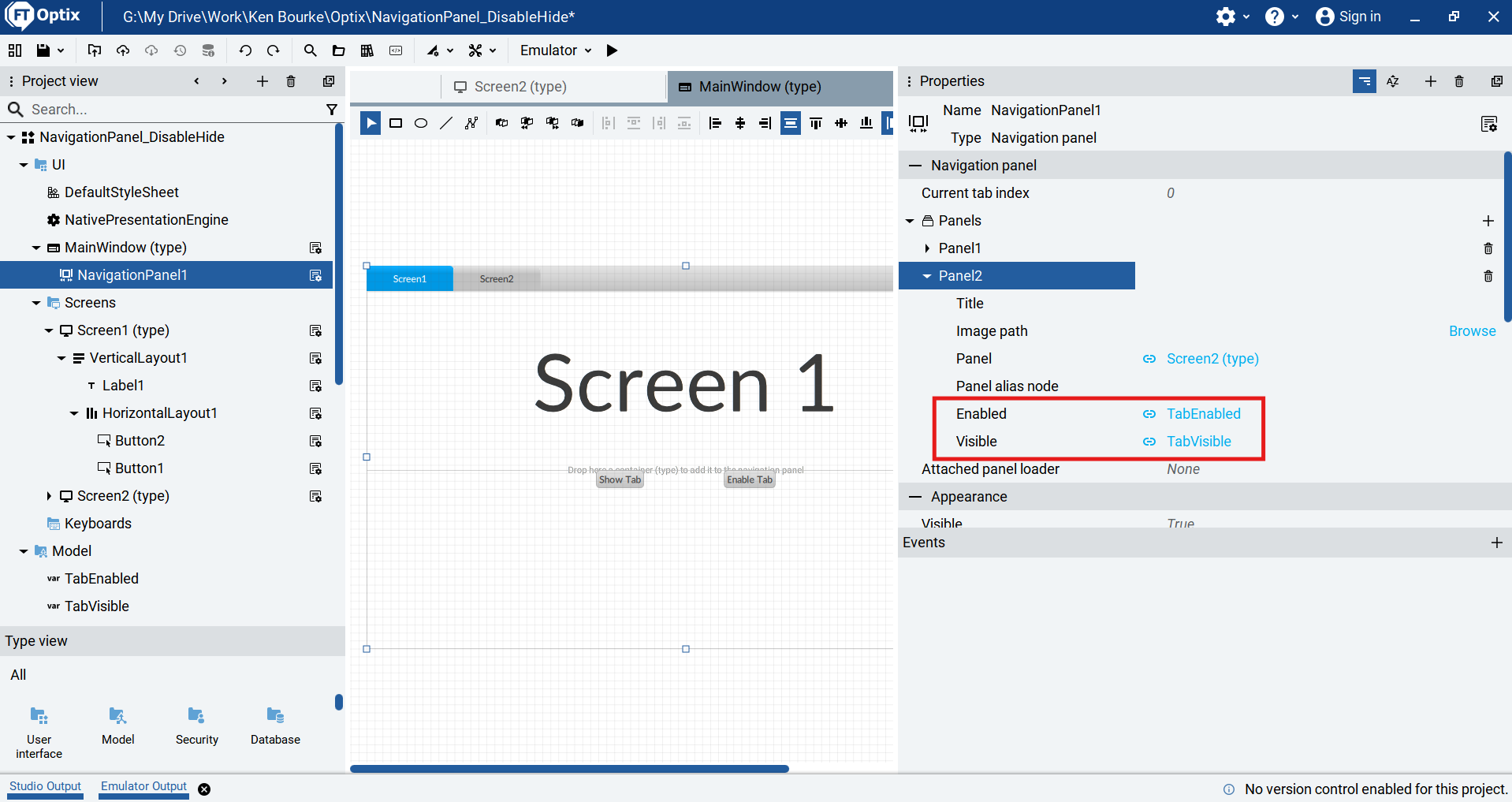
In this example, I’m using a variable to disable and hide a tab but in most applications, you will check the logged in user or check if the logged in user belongs to a specific user group using NetLogic.
After setting the properties, I run the project to check the result.
When the application starts, the tab for Screen 2 is hidden because the variable TabVisible is False by default.
When I click on the Show Tab button, TabVisible becomes True and the tab is displayed.
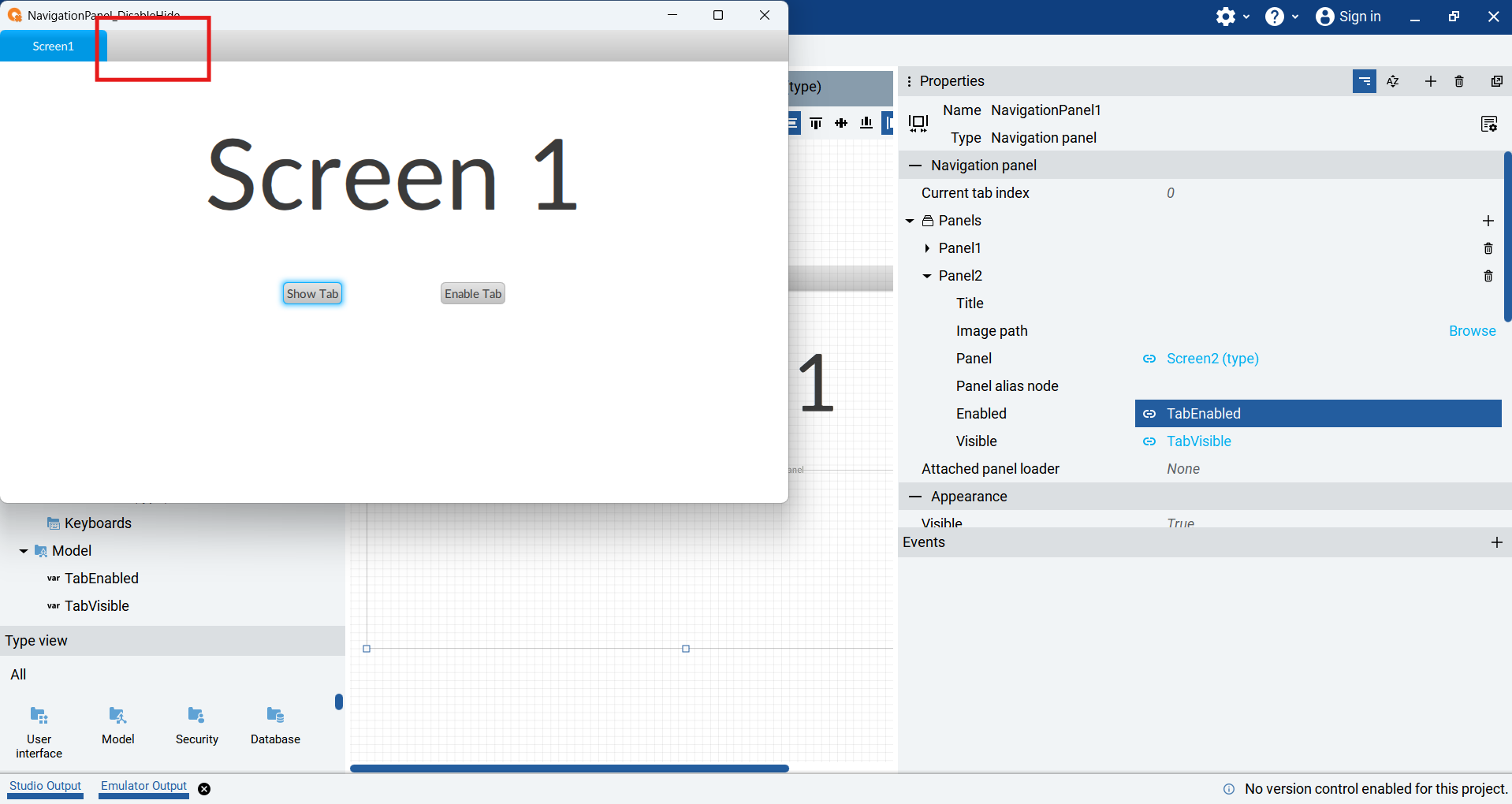
Even though the tab is displayed, I can see that it is greyed out and I can’t click on it to navigate to Screen 2. That’s because the TabEnabled variable is False and the tab is disabled.
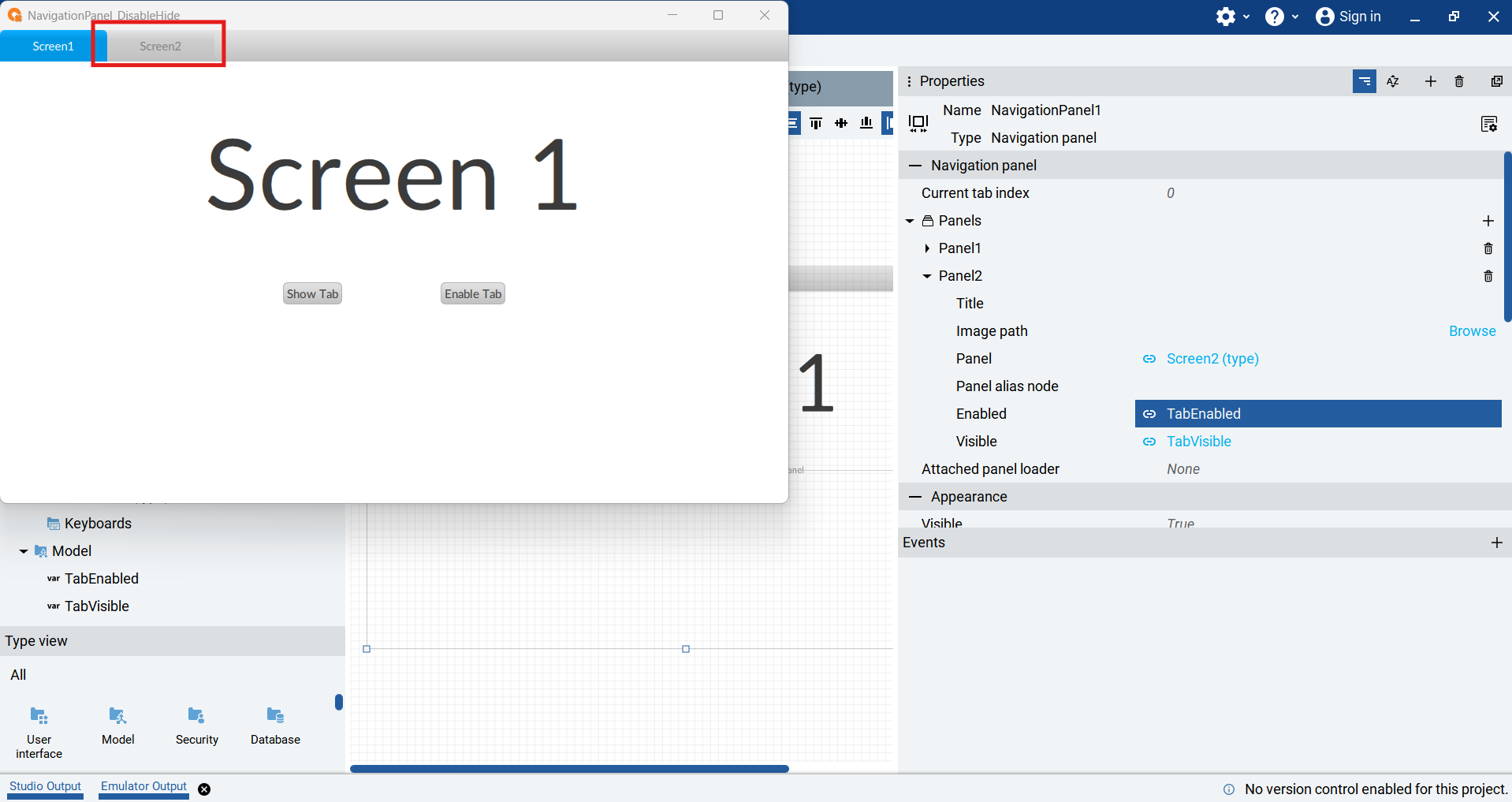
I click on Enable Tab to enable the tab and I can see that the appearance of the tab immediately changes.
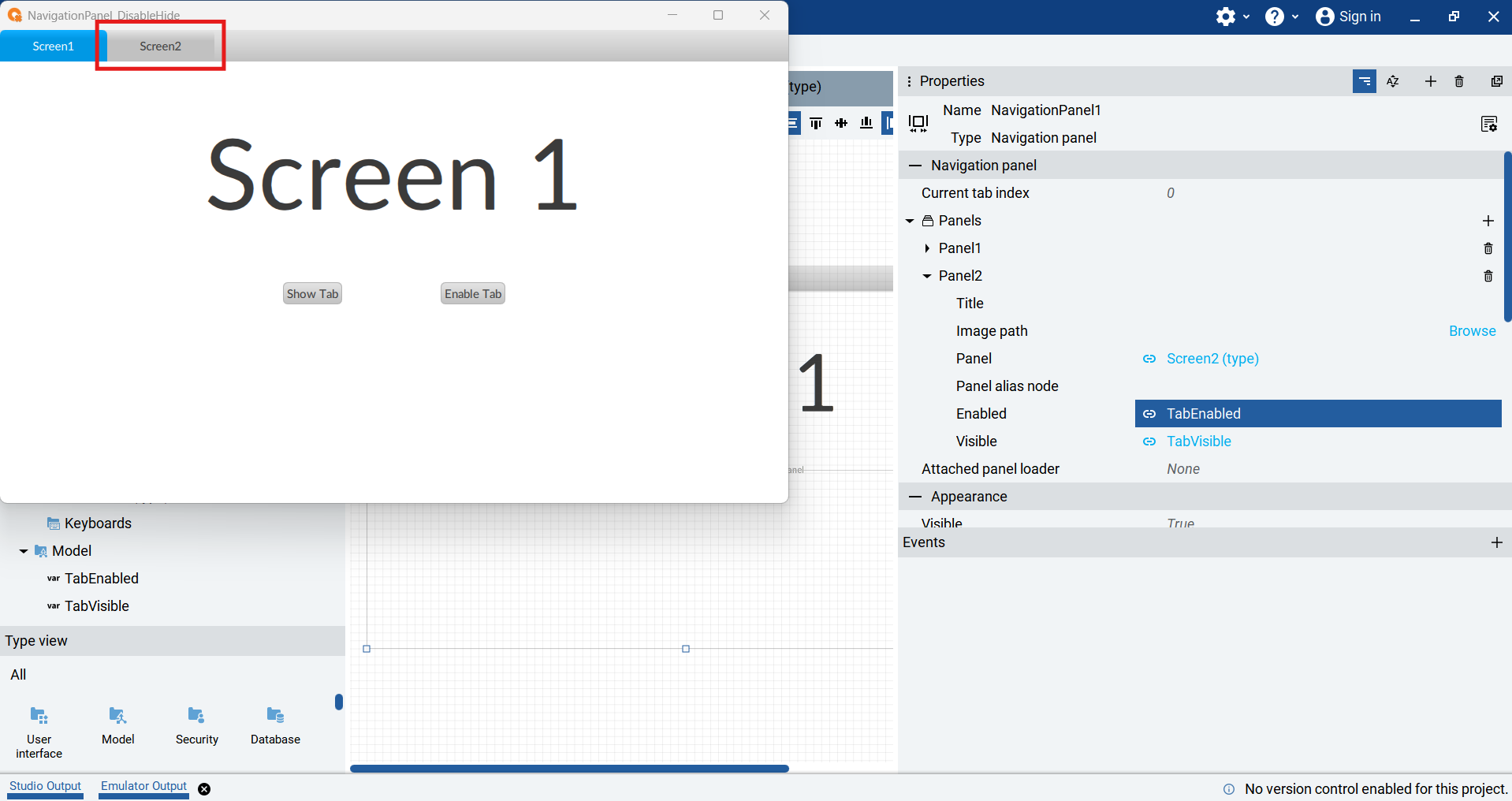
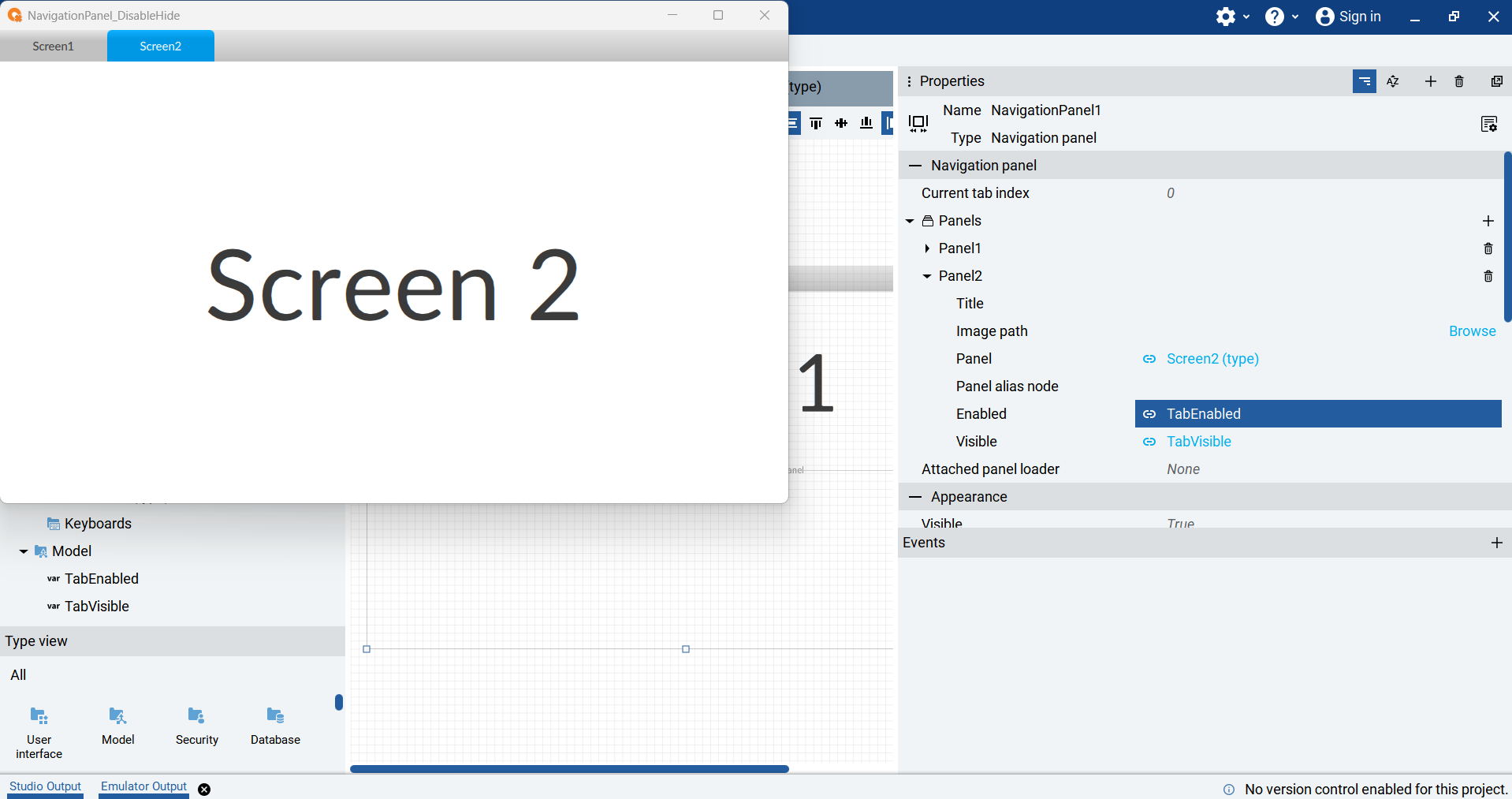
Now I can click the tab to navigate to Screen 2.
Now you know how to use the Visible and Enabled properties of a tab in a Navigation Panel to control who can see and activate tabs.
You can also use local methods that are exposed by the Navigation Panel to change the tab based on events like a button click. I’ll show you how to use those local methods in my next tutorial.
If you haven’t already, subscribe to the mailing list to be notified when that tutorial is available.
PS: You can grab this project from GitHub here.
Get new content delivered straight to your inbox:
.png)