
In FactoryTalk Optix, events are things that happen and methods are actions that are taken.
In this tutorial, I’ll show you how to chain events and methods together to create application logic for your Optix projects. By the end of the tutorial, you’ll know how to use native events and methods, create custom events, and add event listeners to objects.
Let’s get started by talking about native events.
Most objects in FactoryTalk Optix have native events that are listed below their properties. As you can see here, a button has three events - MouseClick, MouseDown, and MouseUp.
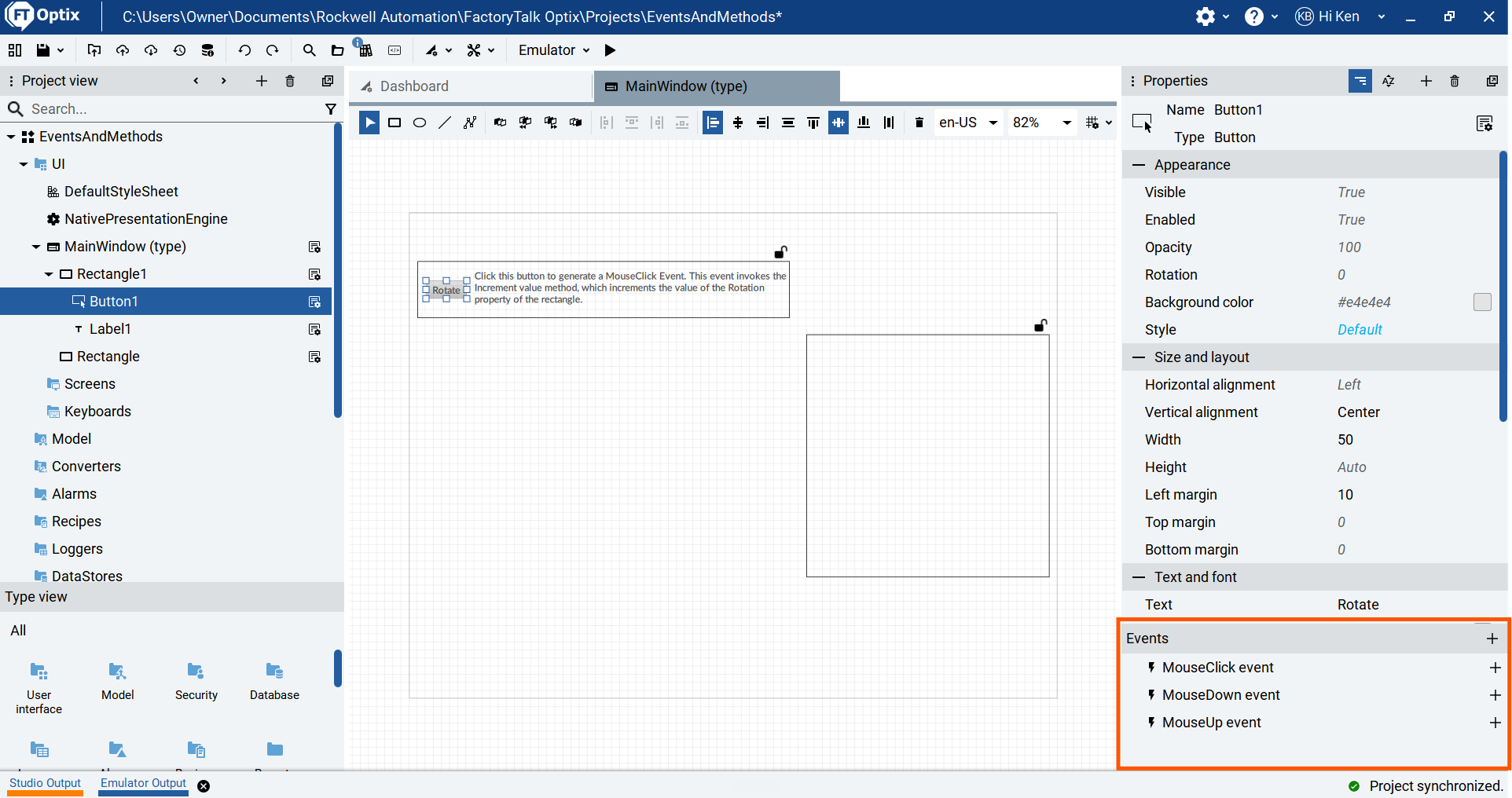
When an event fires, it is possible to execute a command. To do that, click on the + icon beside the event that should trigger the command.
.png)
A browse window opens that lets you browse the different commands that are available.
The Commands folder contains global commands that are subdivided into categories.
.png)
The Variable commands folder contains commands that are used to modify the value of variables.
The Core commands folder contains commands that are used to interact with the Optix core. With these commands you can do things like close and restart the runtime.
The Alarm commands folder contains commands that can be used to acknowledge and confirm alarms.
The UI commands folder contains commands that can be use to interact with the UI by opening dialog boxes or displaying the virtual keyboard.
Some objects will also expose local commands that are available in this Browse window. For example, in my previous tutorial, I showed you how the Panel Loader exposes a Change Panel method.
To link a command to an event, select the event in the browse window and click Select.
.png)
The command, also called a method, is listed below the event.
Methods can have arguments that are used to pass data to the method. In this case, the Increment Value method takes two arguments. They are the variable to modify and the delta, or the amount to change the variable by.
In this case, I am incrementing the value of the variable Rectangle Rotation by 30 each time the event fires. This variable is linked to the Rotation property of the rectangle.
.png)
Now when I run the project, I can click the button to rotate the rectangle.
.gif)
An event can trigger multiple commands. Each command is executed in the order that it is listed and, if required, commands can be reordered by dragging and dropping them.
As well as native events, objects in FactoryTalk Optix support custom events. To add a custom event to an object, right-click on any property, hover over New, and select the type of event to be added.
A changed event is triggered when the value changes, a transitioned event is triggered when the value meets a specific condition, and a range transitioned event is triggered when the value goes into or out of a specific range.
.png)
Once the event is added, it is listed in the events pane with the native events and is ready to be configured. In this case, the event will fire when the rotation of the rectangle is greater than or equal to 30.
.png)
Once the event is configured, I can add a command to the event in the same way that I add a command to a native event. In this case, I will change the background colour of the rectangle when the event fires.
.png)
When I run the project, I can see that the background colour does change when the rotation gets to 90.
.gif)
Variables can also have custom events.
In this case, I have created a new variable called Rectangle Rotation and linked it to the rotation of the rectangle.
I can add a custom event to the variable in the same way I add a custom event to the property of an object.
.png)
This event is configured to fire when the rotation of the rectangle gets to 180
.png)
Instead of adding a command directly to this event, I want to show you how you can add event listeners to a project.
Optix supports the concepts of event listeners which are, effectively, events that are triggered by other events.
To add an event listener to an object, click on the + icon in the top right corner of the events pane of the object.
.png)
In the browse window, you can browse for events in the project, like the one we just added to the Rectangle Rotation variable.
.png)
Once the listener is configured, you can add a command to it just like any other event.
.png)
Now when I run the project, the Rectangle Rotation variable fires an event when its value reaches 180. This event is listened to by an event listener in the main window which invokes the Set variable value method when the event is detected and this method resets the value of Rectangle Rotation to 0.
.gif)
It is not obvious what objects in Optix have custom events or event listeners so it can be very hard to trace logic that relies on them.
If you must add custom events to variables, I recommend putting them in a dedicated folder to show that these variables have custom events.
I also recommend avoiding using event listeners. I still haven’t found a situation where it is absolutely essential to use them.
In this tutorial, I have shown you how to use events and methods to create application logic in FactoryTalk Optix.
By now, you should understand how to:
You should also understand that adding events to variables and using event listeners is not best practice when developing applications.
You can find the code for this tutorial here:
Get new content delivered straight to your inbox: