
In my previous tutorial, I showed you how to download Rockwell Automation’s Machine Builder Libraries from the PCDC. If you missed it, you can read that tutorial here.
In this tutorial, I’ll show you how to register the libraries that you have downloaded in Application Code Manager.
There are two different ways to register libraries in Application Code Manager and we’ll cover both in this tutorial.
When you open Application Code Manager, or ACM, you’ll see the registered library list in the right pane. Out of the box, there are two registered libraries.

To register the Machine Builder Libraries, right-click on Registered Libraries in the right pane and select Register.

A file browser will open. Use this browser to navigate to the folder when you unzipped the Machine Builder Libraries, then drill down into the ApplicationCodeManagerLibraries folder.
Select all of the files there using Ctrl + A and click Open.
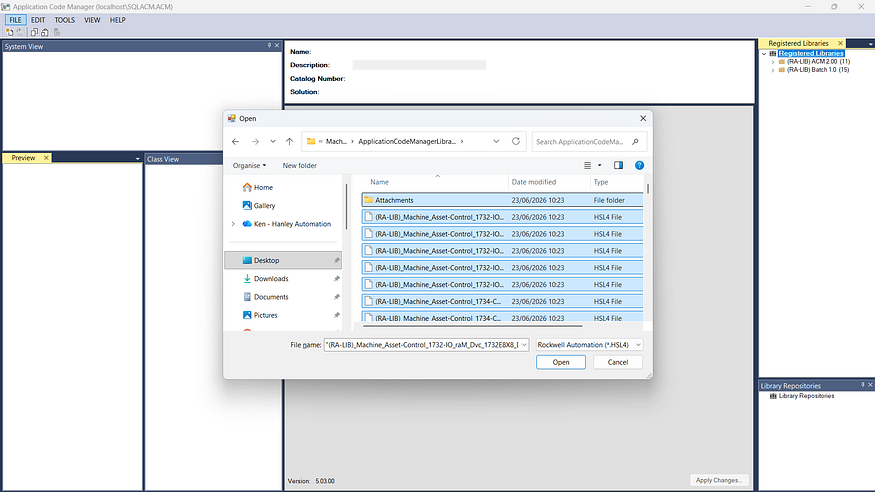
Each library object is registered in ACM, which can take some time — this might be the right moment to go make a coffee.

Finally, click Finish in the Library Registration dialog to finish registering the libraries.

The Machine Builder Libraries will now appear in the registered libraries list and are ready to use in a project.

Another way to register a library in ACM is to run the Setup script, which is located in the library folder.

If you’re curious, the ReadMe file explains exactly with this script does.

I will go ahead and run the Setup script to register the Power Device Object Libraries in ACM. Depending on your security settings, you may need to confirm that you want to run the script.

The script runs and provides updates on the progress through Console messages.

When the registration is finished, the Console window will close automatically.
In ACM, you can see that the library has been registered successfully:

Note: if you already had ACM open, you may need to right-click on Registered Libraries and select Refresh to see newly registered libraries.

In this tutorial, you learned how to register libraries in Application Code Manager.
In my next tutorial, I’ll show you how to create a project and add a PLC. You can find that tutorial here.
Get new content delivered straight to your inbox:
.png)
.png)