
In the last tutorial, we added a Unit to our ACM project. If you missed it, you can find that tutorial here.
With the Unit in place, it's time to break our machine down into its functional sections. In this tutorial, we'll add Equipment Modules to the ACM project. Our demonstration machine has 5 Equipment Modules. They are:
An Equipment Module is a functional group of control modules that execute a finite set of activities. Its role is to coordinate the lower-level objects beneath it. It can exist within a Unit, or as a standalone grouping within a Process Cell.
For our assembly machine, we're choosing to divide the machine into five equipment modules. This is one reasonable way to structure the machine but it's ultimately up to the programmer to decide what makes sense for their application.
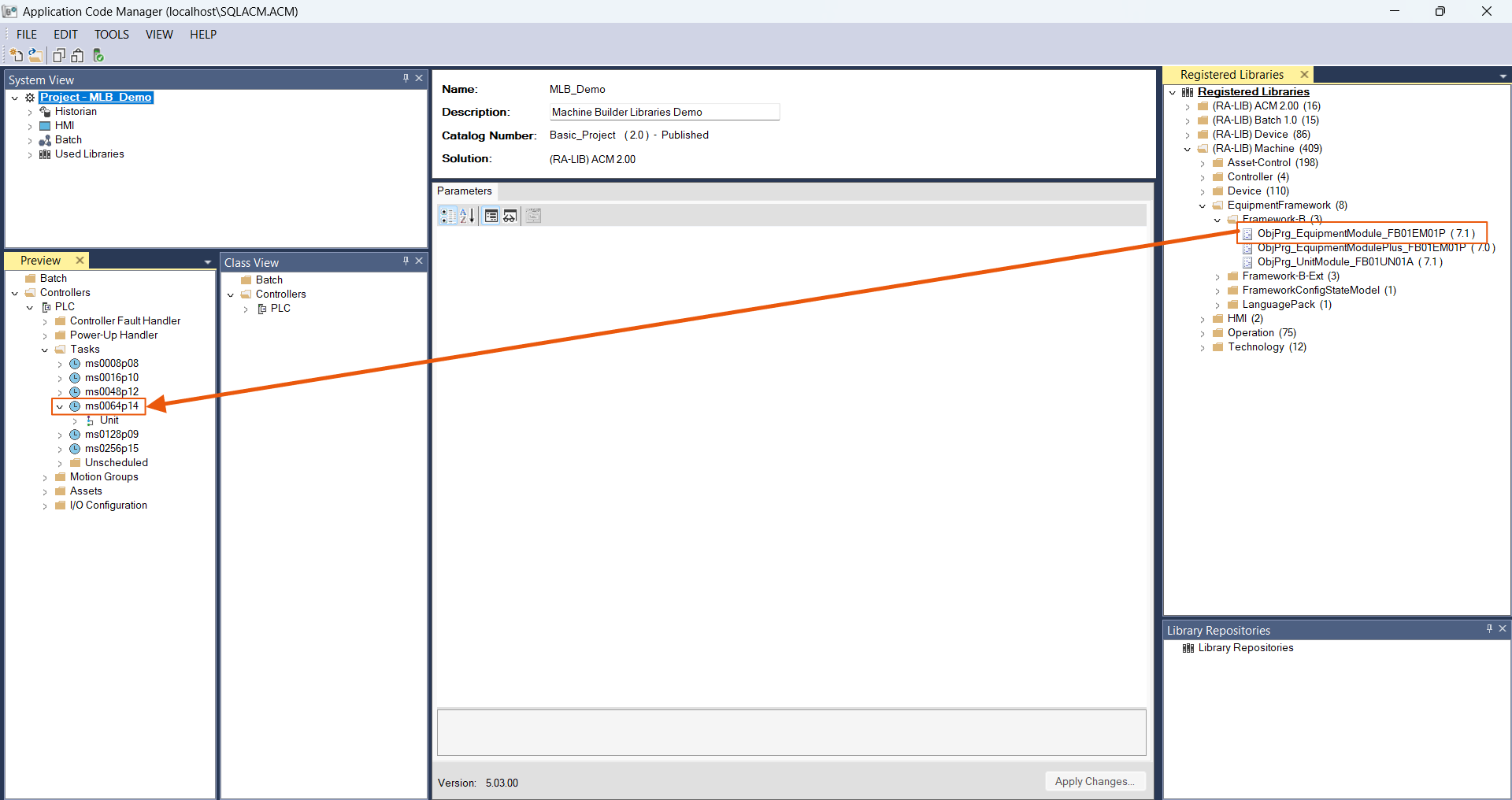
The Equipment Module object lives in the Framework-B folder, just like the Unit. Drag it from the library and drop it onto a task in the Class View pane.
The Object Configuration Wizard opens.
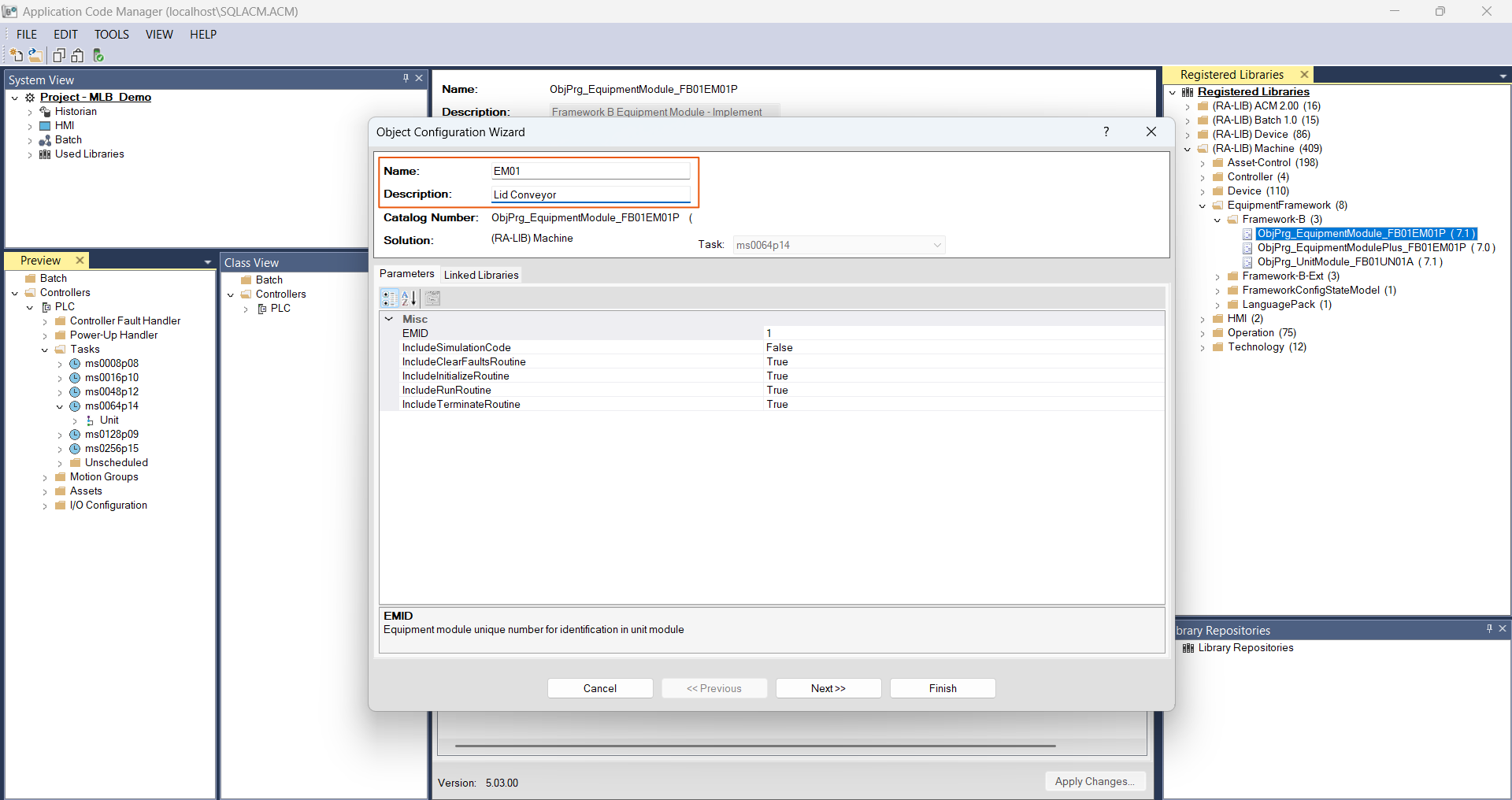
Give the Equipment Module a Name and description. In this case, I'm naming my Equipment Module EM01 and using the Description field to give that name more context.
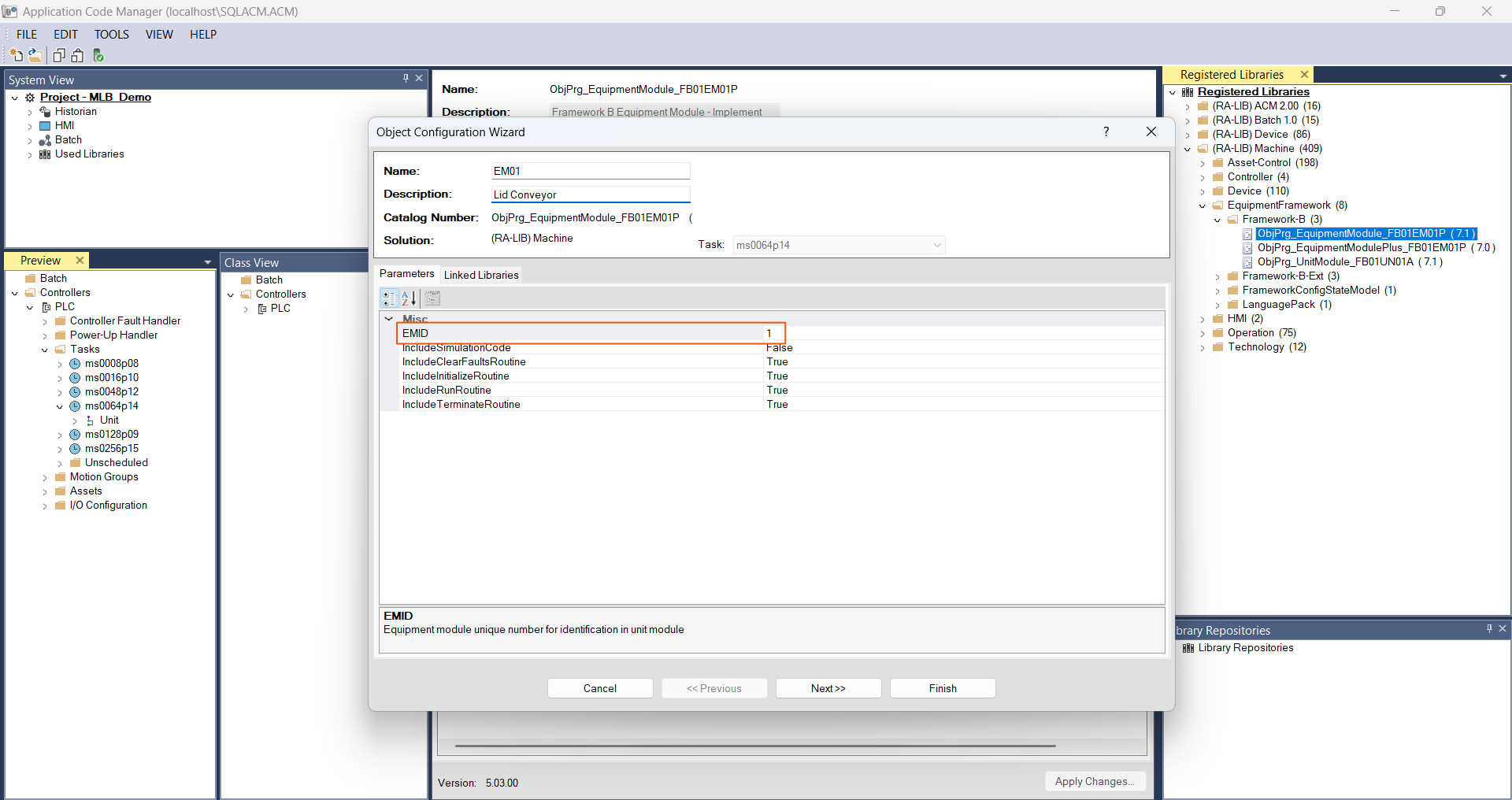
You will also need to set the EMID, also known as the Equipment Module Identification Number. This is a unique value assigned to each Equipment Module that the Unit uses to identify it. For the first Equipment Module, we'll leave it at one and increment it for every subsequent Equipment Module.
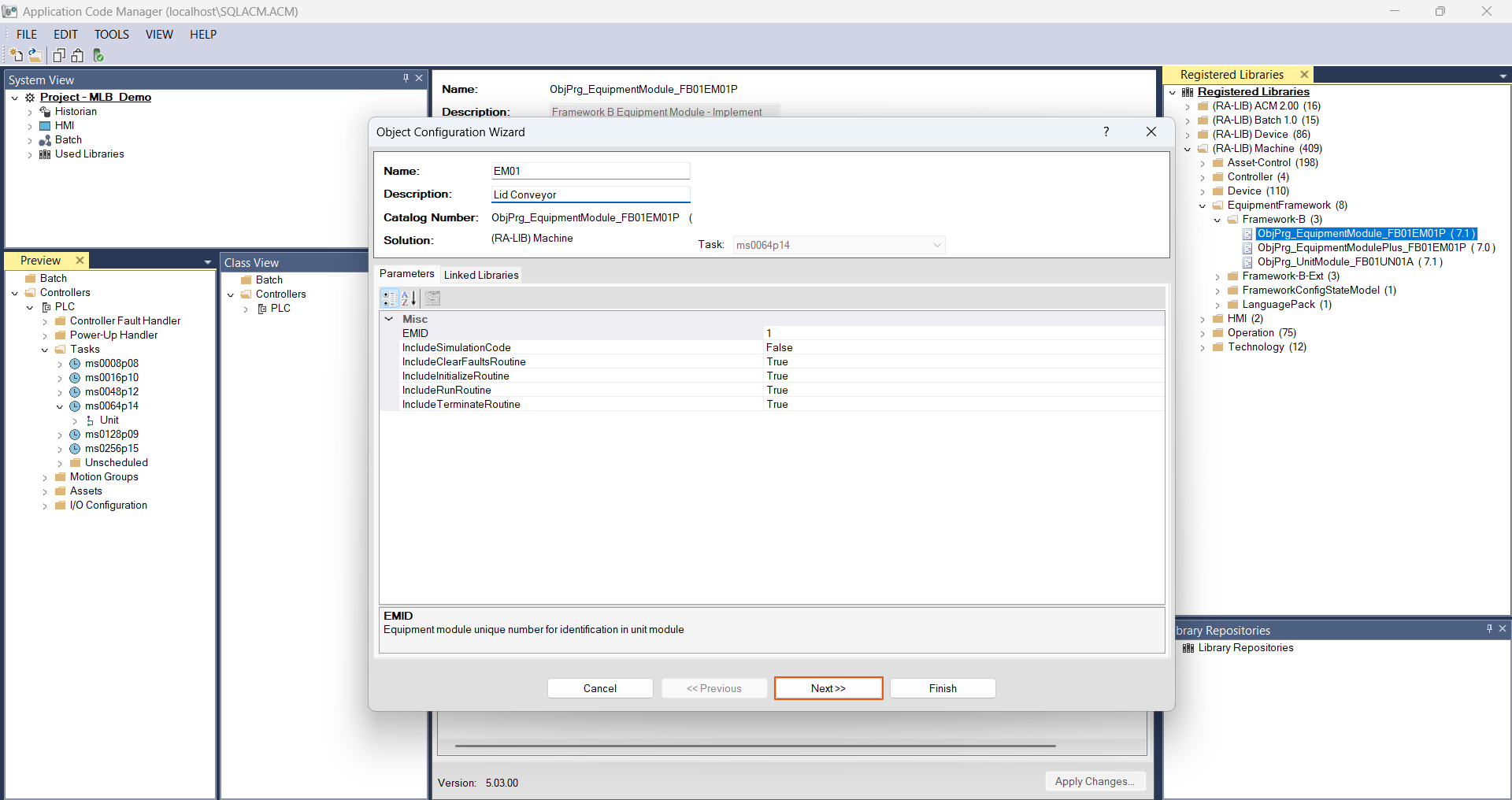
Click on Next to activate the Linked Libraries tab.
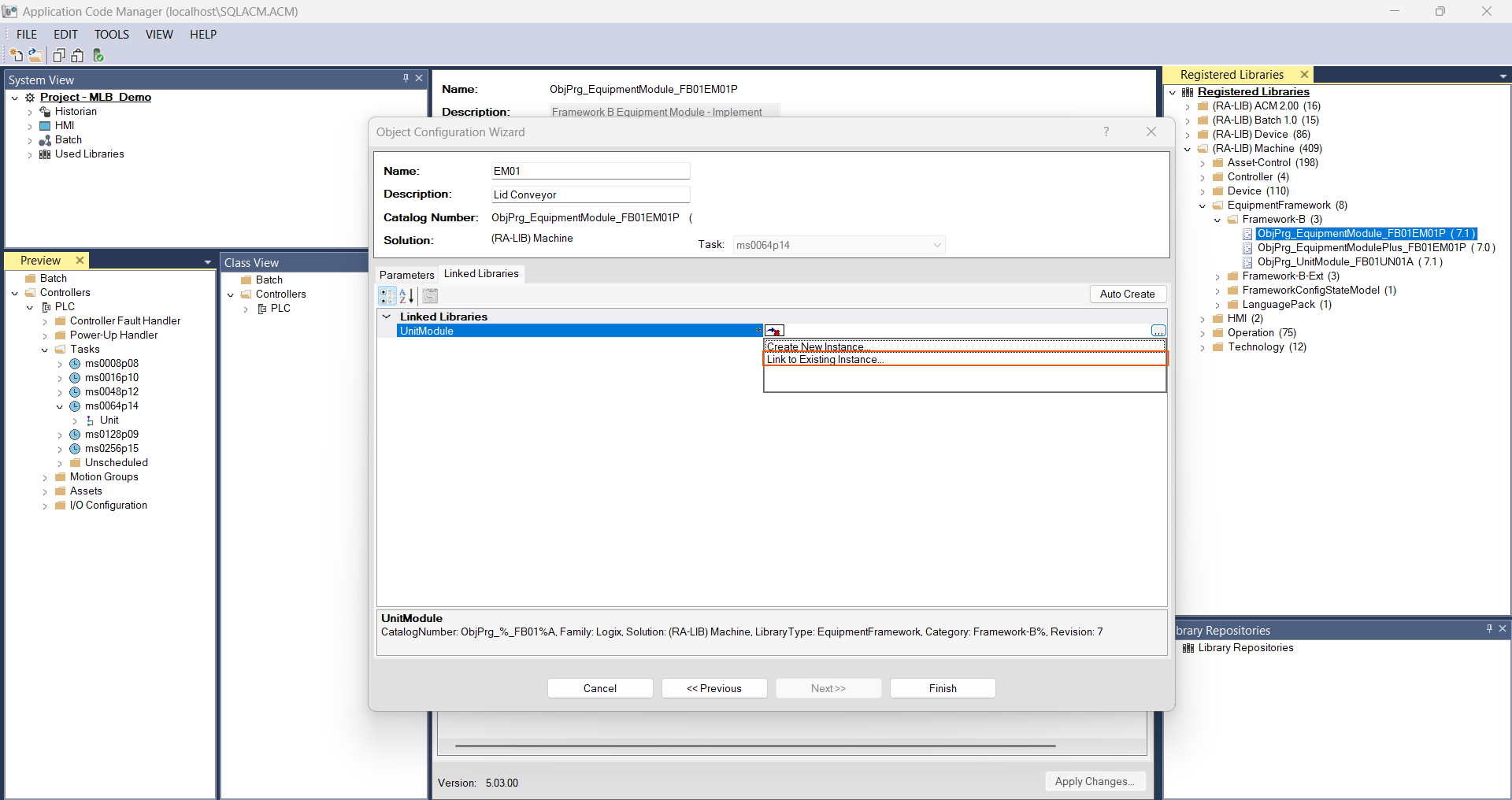
On the Linked Libraries tab, you need to link this Equipment Module to the Unit above it. Click in the UnitModule field, then click the … button and choose Link to existing instance.
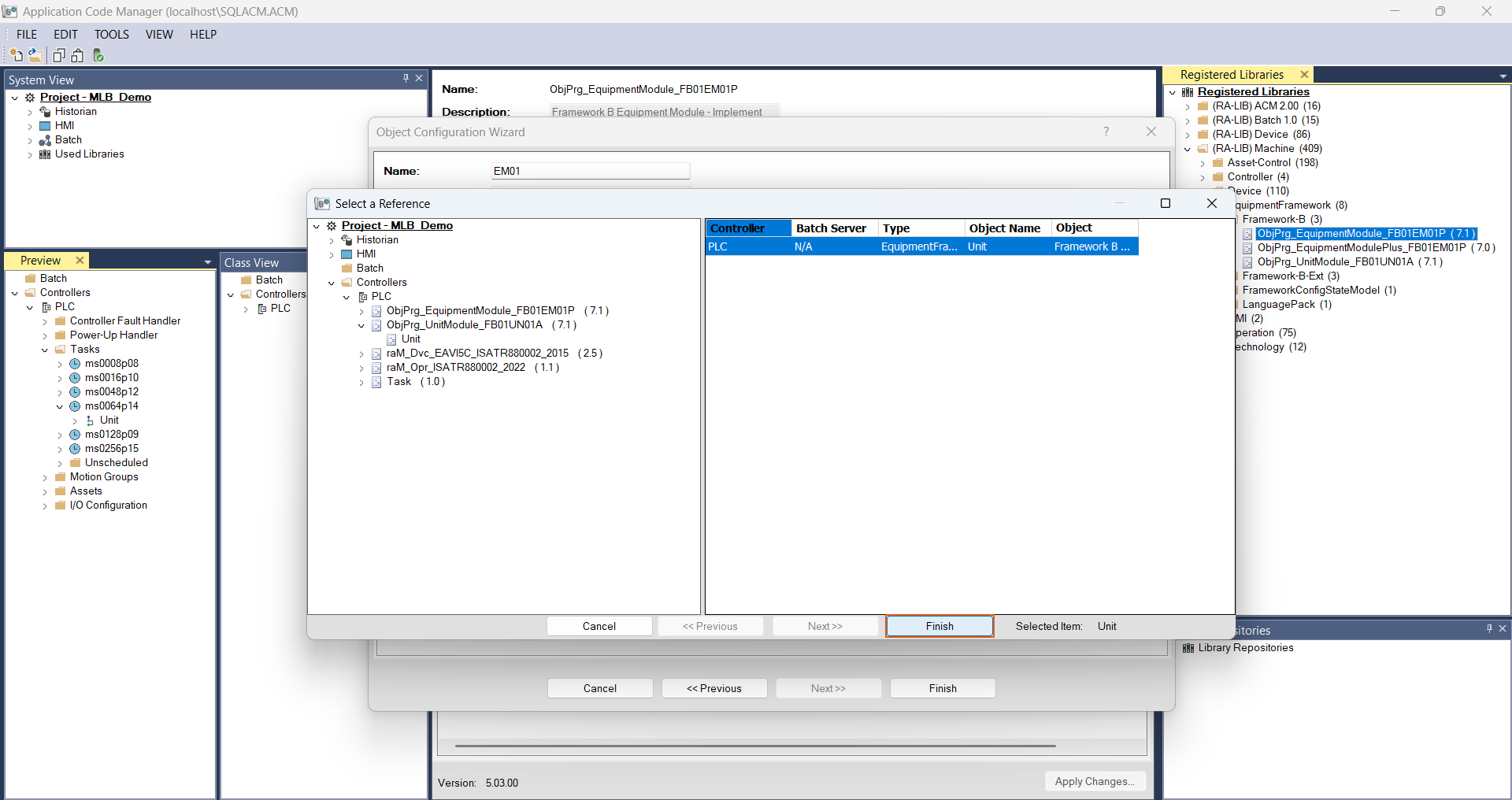
Since there is only one unit in the project, it is selected by default so we can click Finish to link the Equipment Module to the Unit.
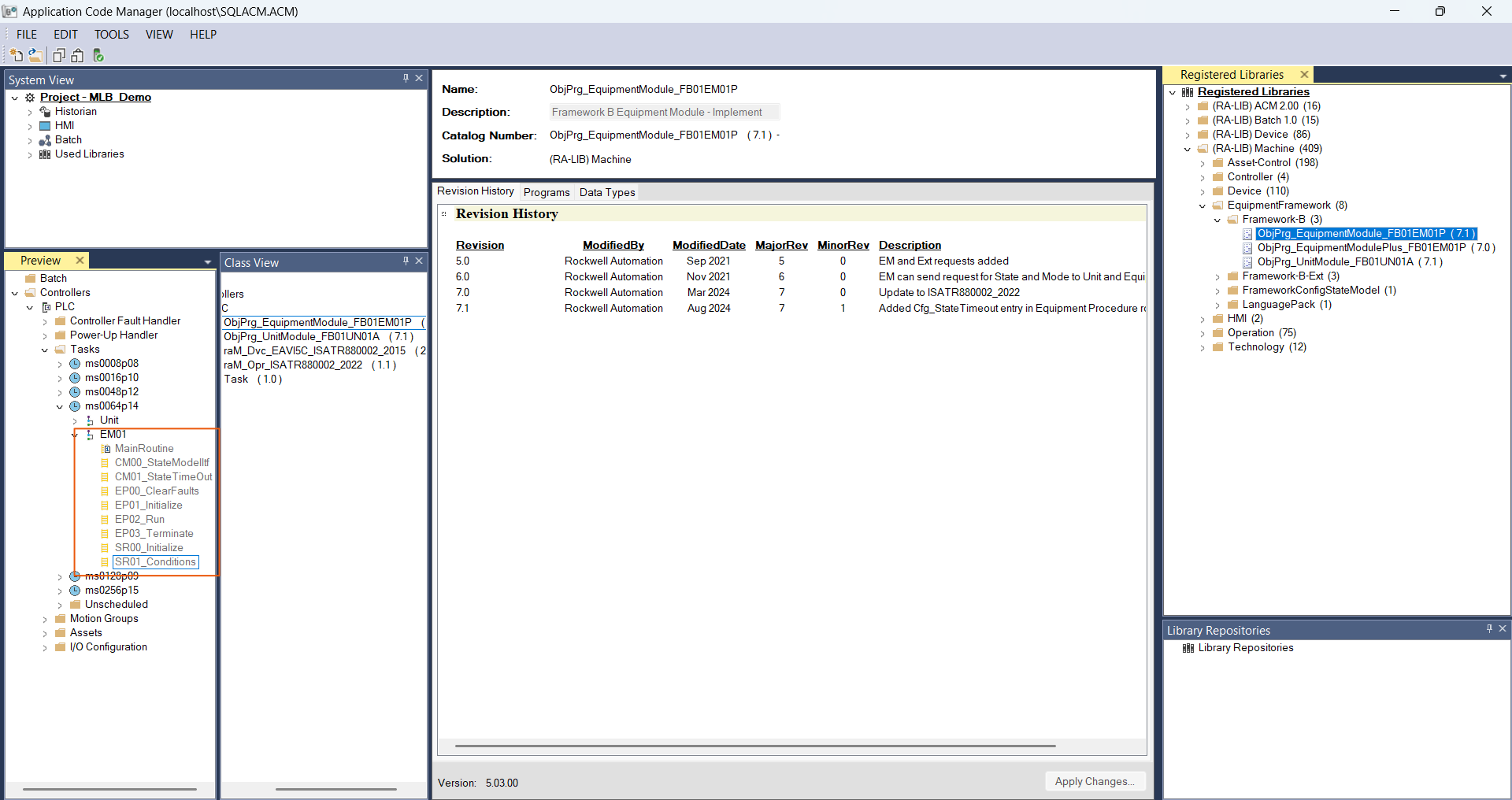
The Equipment Module is added to the project.
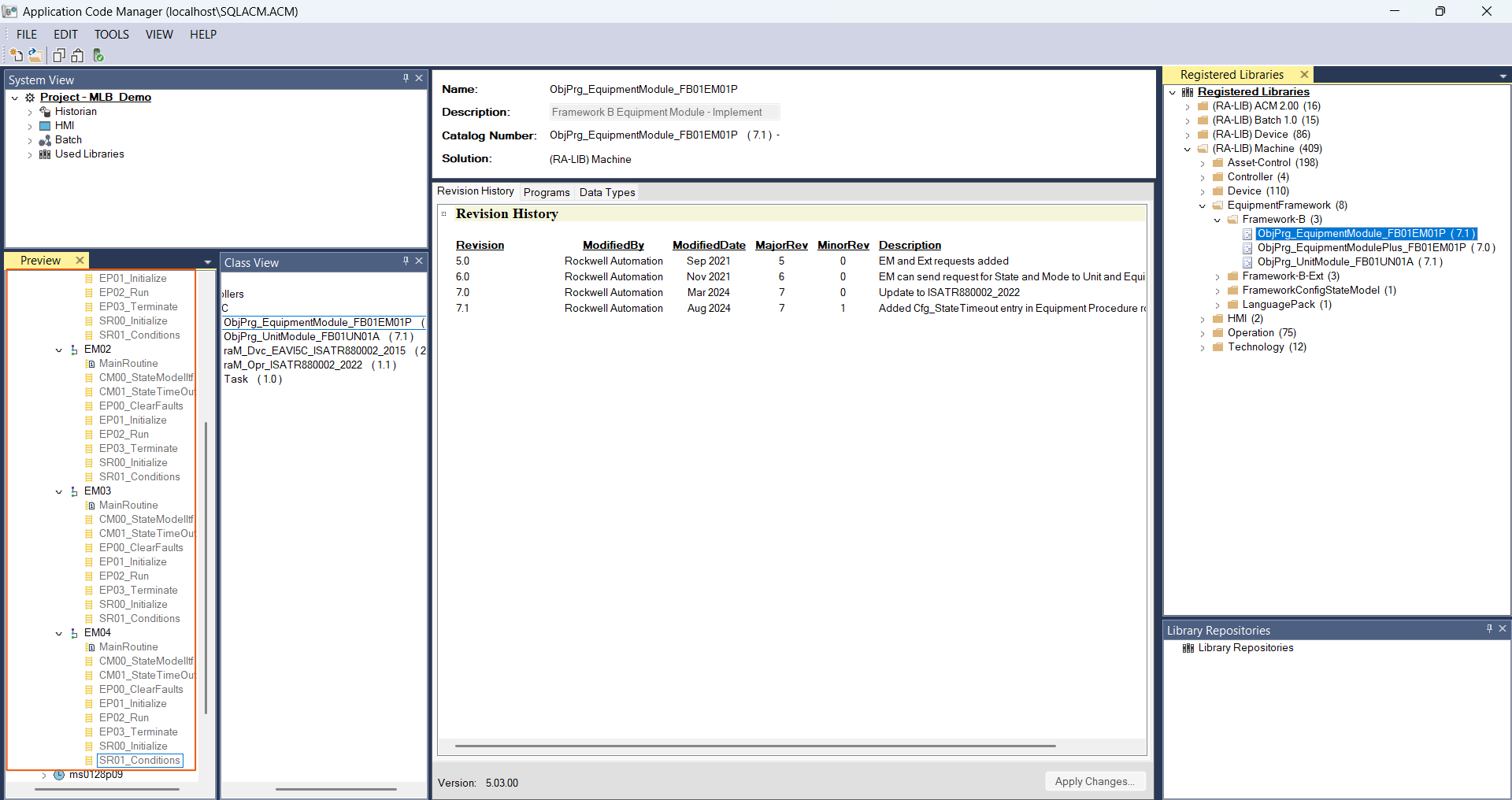
I'll repeat this process to add the remaining 4 Equipment Modules, assigning each Equipment Module with a unique EMID.
Now that our Equipment Modules have been created, we can add Control Modules to the project.
We'll do that in the next tutorial. See you there.
Get new content delivered straight to your inbox:
.png)
.png)