
In this post, I'll show you how to import tags to a FactoryTalk Optix project offline from a Studio 5000 Logix Designer project and online from a project running in a Logix 5000 PLC.
Let's get started by looking at importing tags offline.
To start, we'll need to create an EtherNet/IP driver that will be used to import tags. To do that, right-click on CommDrivers in the Project view tree.

Hover over the New menu item and select RA EtherNet/IP Driver from the list of available drivers. You will notice that unlike other Rockwell Automation products, FactoryTalk Optix has communication drivers for many different types of PLCs.

A new EtherNet/IP driver is added to the Project view tree. Right-click on the new EtherNet/IP driver.

In the New submenu, click on RA EtherNet/IP Station to create a new station. In Optix, a PLC is called a Station.

The Station is added to the Project view tree. Click on the arrow beside the station to expand it.
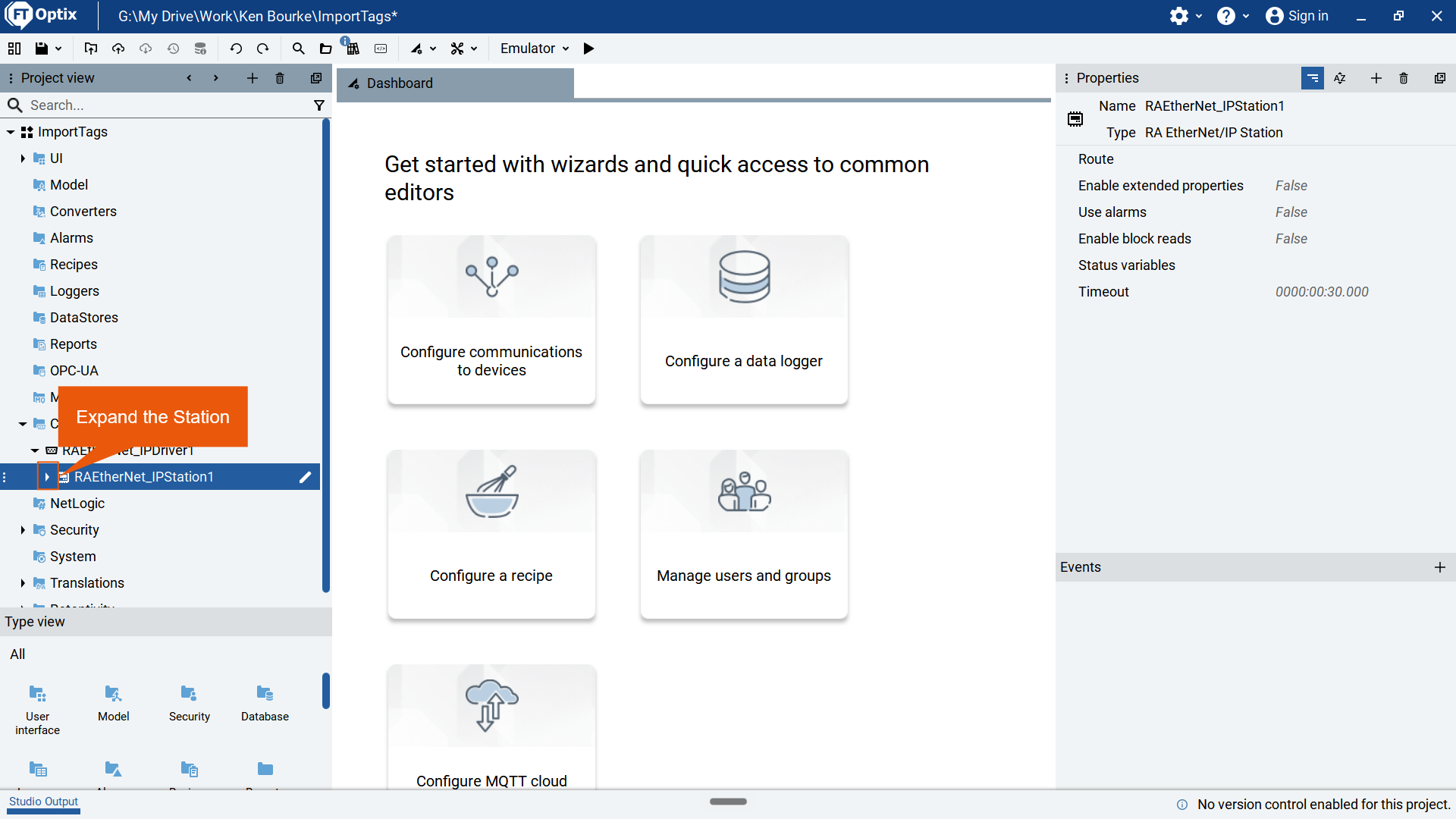
Double click on TagImporter to open it.

In the TagImporter, click on the Browse button.

In the Select File dialog that opens, select the Studio 5000 project that you want to import tags from and click Open.

A small dialog in the bottom right corner lets you know that tags are being imported.

The imported tags are listed in the TagImporter window. Select the tags that you want to import to the Optix project.

Click Apply to import the selected tags to your project.

The imported tags are available in the Project view tree.

To import tags online, we'll add another EtherNet/IP station. To do that, right-click on the EtherNet/IP driver.
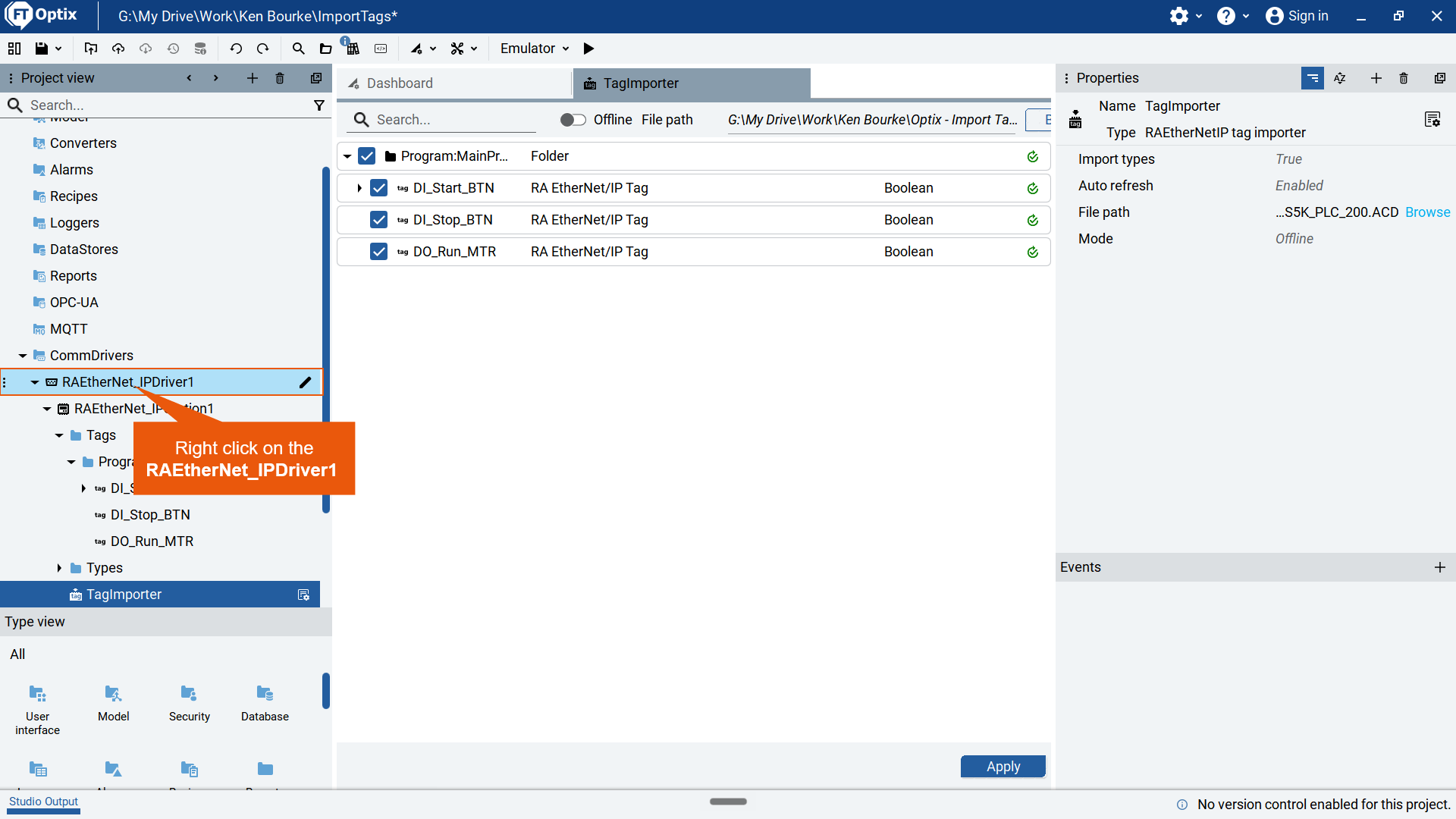
In the New menu, select the RA EtherNet/IP Station menu item to add a new EtherNet/IP station.

Open the TagImporter for the new EtherNet/IP station.

Toggle the Online/Offlien switch to change the TagImporter to Online import mode.

Enter the route to the controller and press enter to import the tags. For a CompactLogix controller, the route will just be the IP address of the controller. For a ControlLogix controller, this might be more complicated.
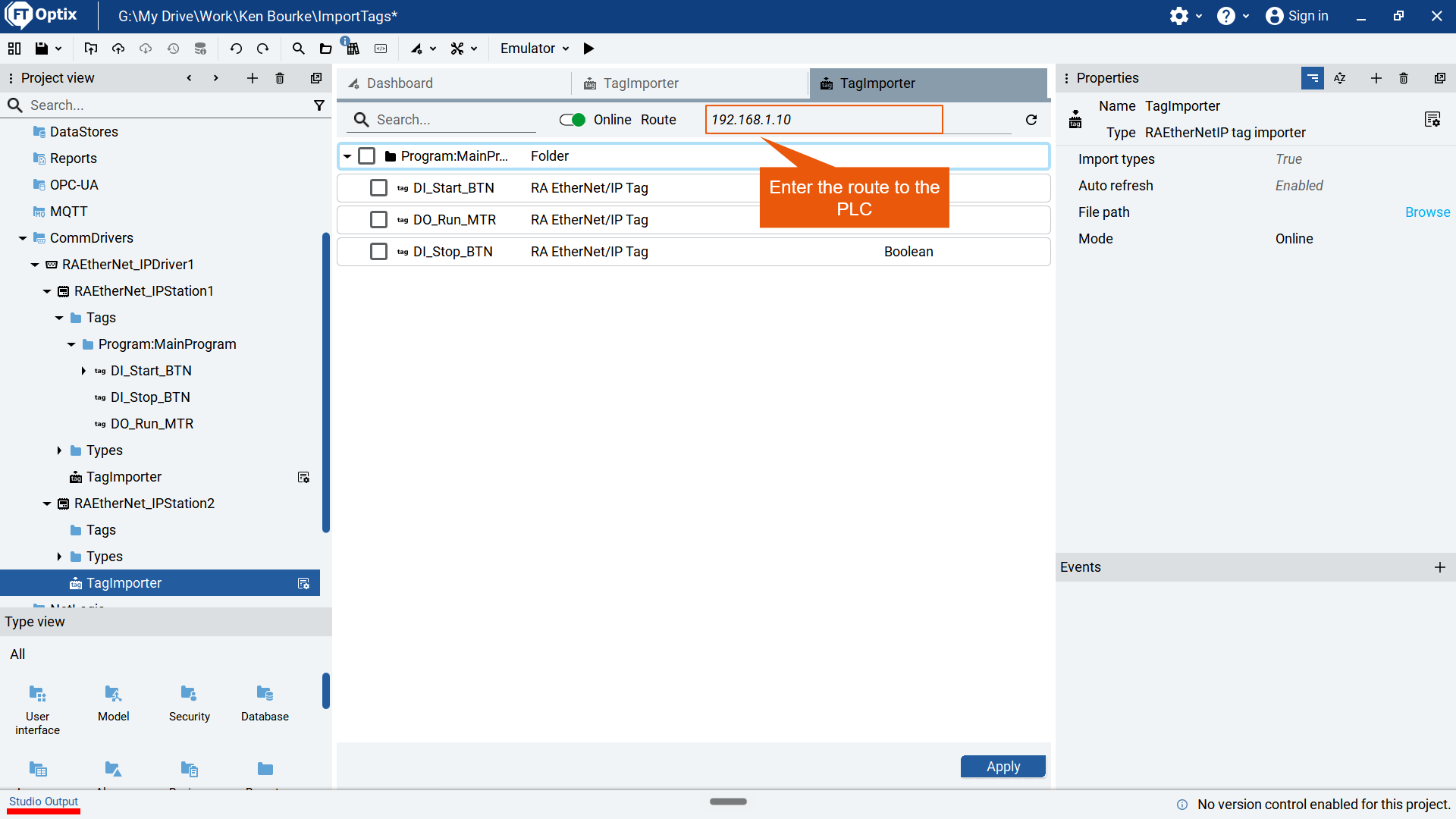
Once again, select the tags that you want to import and click Apply.

Once again, the imported tags are available under the new EtherNet/IP station.

Now you know how to import tags online from a Logix 5000 PLC and offline from a Studio 5000 Logix Designer project in FactoryTalk Optix.
Get new content delivered straight to your inbox: